
Getting started with CARVO
From sign-up to tracking your first import shipment in under an hour. This guide walks you through everything you need to know.
1. Sign up
Create your free account at getcarvo.com/signup. Enter your email address — CARVO uses magic link authentication, so there's no password to remember. Check your inbox, click the link, and you're in.
Your account starts on the Free plan with 5 shipments, 3 partners, and 3 AI extractions. That's enough to evaluate whether CARVO works for your team.
2. Set up your account
When you first sign in, CARVO asks two questions:
- Base currency — the currency you report costs in (e.g. EUR, GBP, USD). CARVO converts all costs to this currency automatically using ECB exchange rates.
- Region — your country. This determines date and number formatting throughout the app (e.g. DD/MM/YYYY vs MM/DD/YYYY, comma vs period for decimals).
You can change both later in Settings.
You'll also see demo data in your account — sample shipments, partners, and documents to show you how things look when populated. You can dismiss the demo data banner and clear it whenever you're ready to start fresh.
3. Add your first partner
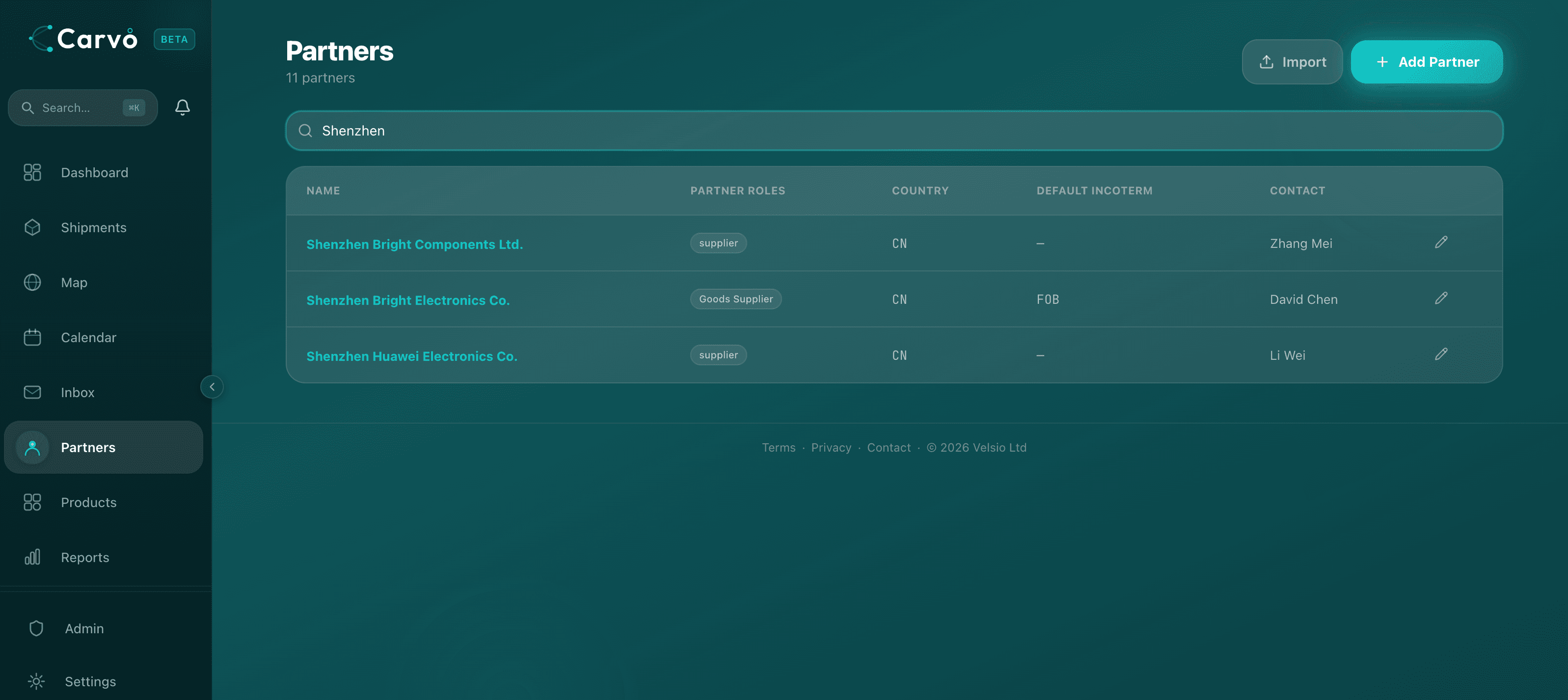
Partners are the companies you work with: freight forwarders, customs brokers, suppliers, warehouses, and hauliers. Go to Partners in the sidebar and click "Add partner".
Enter the company name and select their type (a partner can have multiple types — e.g. a freight forwarder who also handles customs brokerage). Add at least one contact with an email address — you'll need this to request documents from them later.
4. Create your first shipment
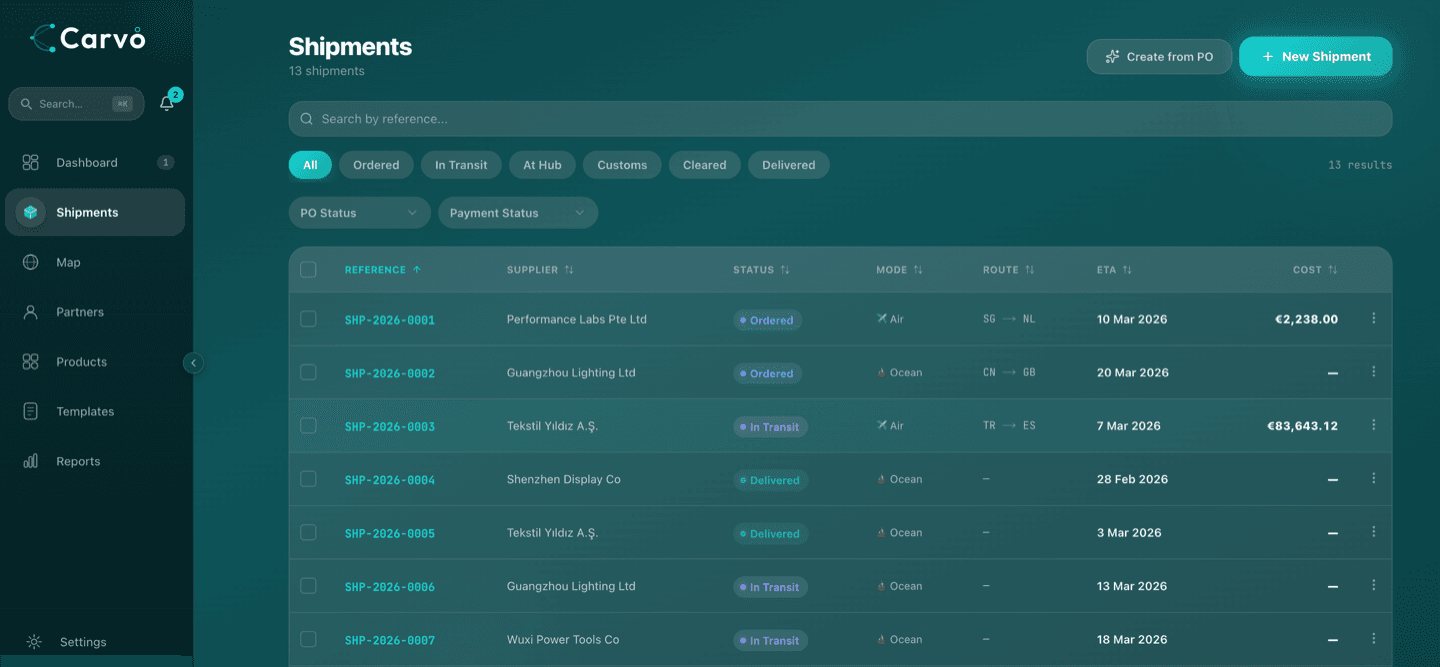
Go to Shipments in the sidebar and click "Create shipment" (or use the + button). You have two options:
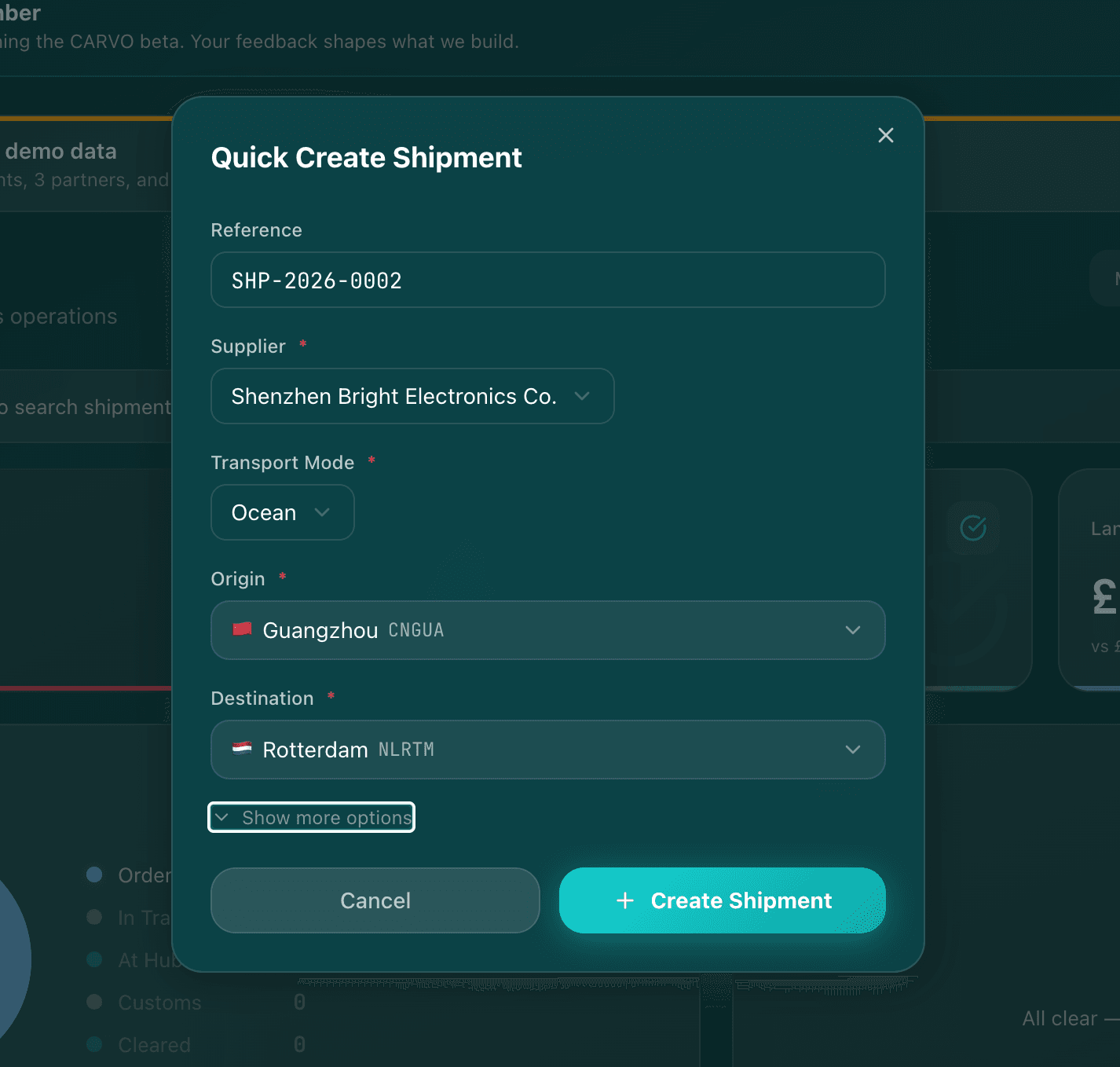
- Quick create — a slide-over form for the essential fields: supplier, origin, destination, transport mode, and expected dates. CARVO generates a unique reference (SHP-2026-0001) automatically.
- Create from document — upload a purchase order or commercial invoice, and CARVO's AI will extract the shipment details for you. Review the extracted data, make any corrections, and confirm. (More on AI extraction below.)
Once created, your shipment appears on the dashboard and the live map. CARVO automatically creates a main carriage leg and a delivery leg based on your origin and destination.
5. Upload a document
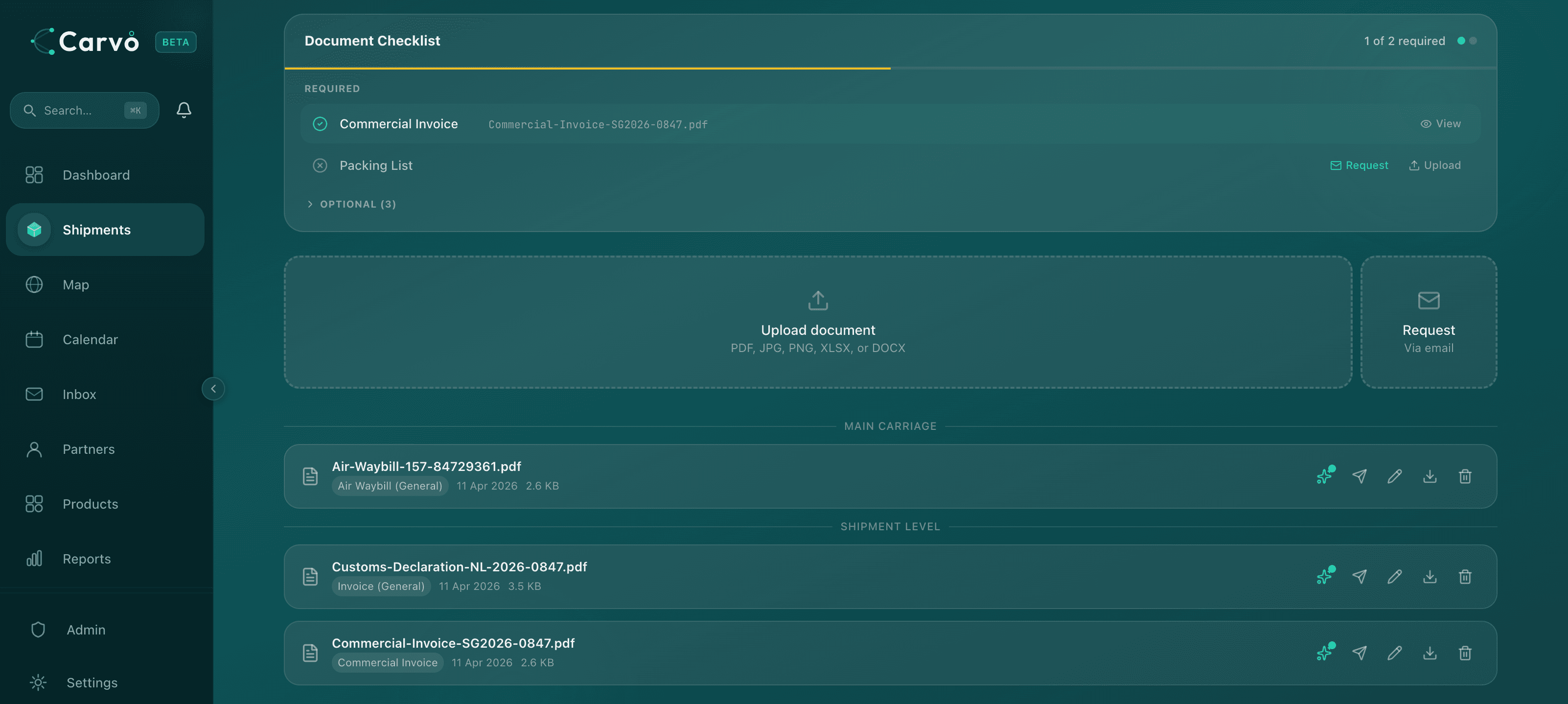
Open a shipment and go to the Documents tab. Click "Upload" and select a file (PDF, image, or Excel). CARVO auto-detects the document type — commercial invoice, bill of lading, packing list, etc.
You can also request documents from partners. Click "Request document", select the document type and the partner contact, and CARVO sends them an email with a secure upload link. When they upload, the document appears in your shipment automatically and you get a notification.
Documents are tracked against a completeness checklist based on your destination country and transport mode. The checklist shows which documents you have, which are missing, and which are overdue.
6. Use AI extraction
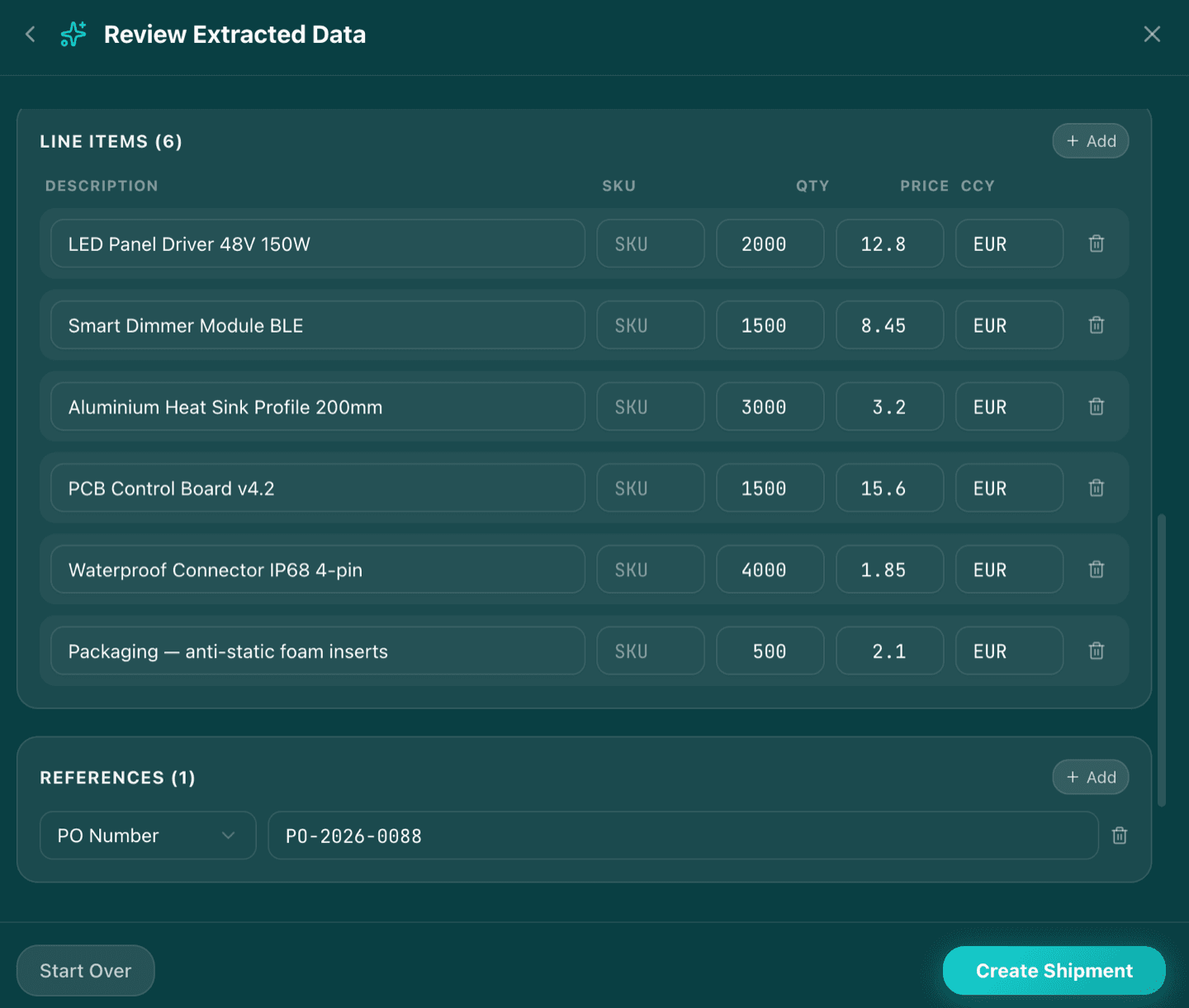
After uploading a document, click the sparkle (✨) button to extract data using AI. CARVO reads the document and pulls out relevant information — reference numbers, dates, costs, line items, and more.
You'll see a review screen showing what was extracted alongside the original document. Check the values, make any corrections, and confirm. The extracted data is added to your shipment automatically.
AI extraction works on commercial invoices, bills of lading, packing lists, customs declarations, freight invoices, and most other standard trade documents.
Your Free plan includes 3 AI extractions. Pro and Team plans include unlimited extractions.
7. Invite your team
Go to Settings → Team to invite colleagues. Enter their email address — they'll receive an invitation with a magic link to join your organisation. Everyone in your organisation sees the same shipments, partners, and documents.
You can assign team members to specific shipments or legs. Use the "My Shipments" filter on the dashboard to see only what's assigned to you — useful for larger teams where each person manages different routes or suppliers.
Free plans include 1 user. Pro plans include 3 seats (add more at €12/month each). Team plans include 10 seats (add more at €10/month each).
8. Explore more features
Once you're tracking shipments, explore these features:
- Live map — see all your in-transit shipments on an interactive map with real-time positions and route lines. Access it from the Map section in the sidebar.
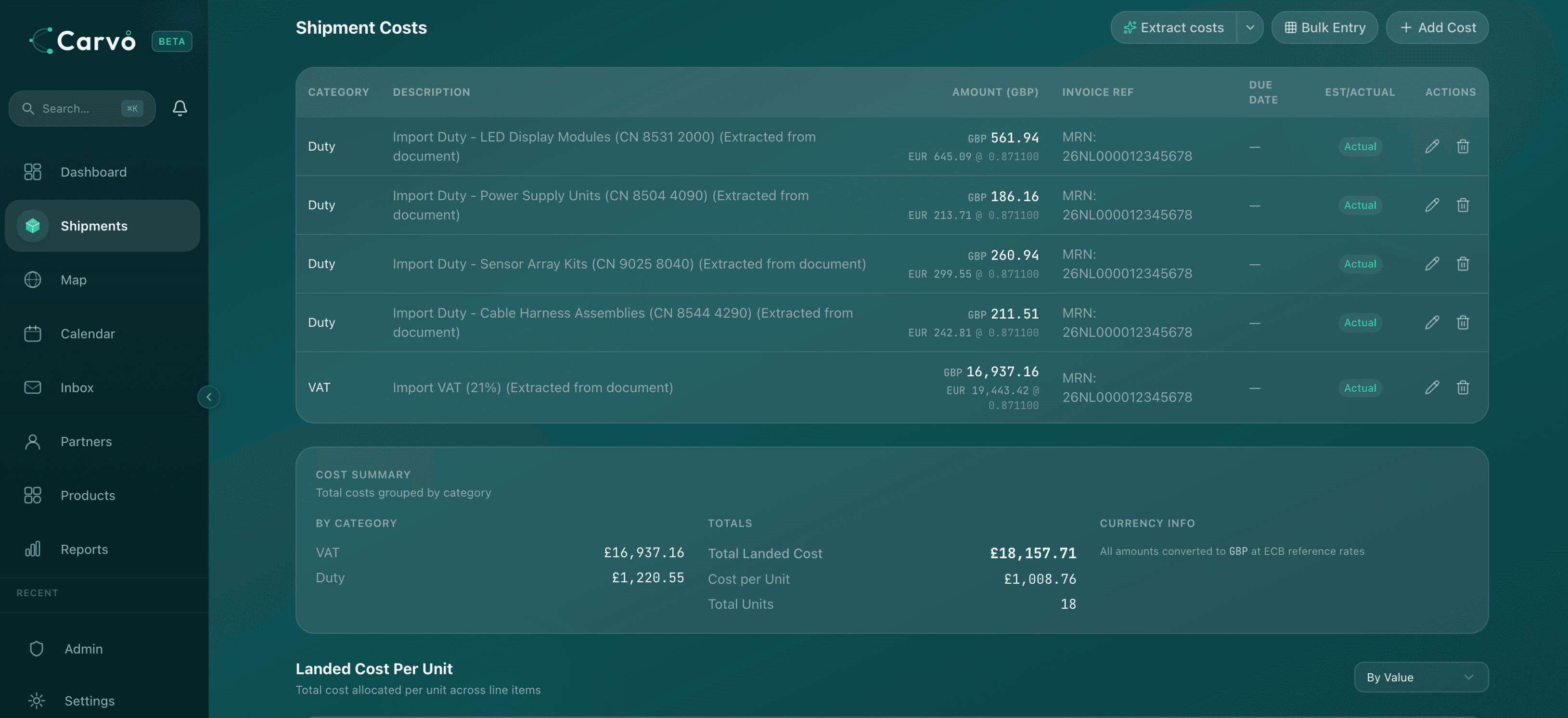
- Landed cost — track every cost against a shipment (freight, duty, insurance, handling) and see the true per-unit landed cost. Go to the Costs tab on any shipment.
- Customs checklists — CARVO includes compliance checklists for all 27 EU member states. The checklist on each shipment is tailored to your destination country and transport mode.
- Morning briefing — every morning, CARVO sends you an email summary of what needs attention today: arriving shipments, missing documents, customs deadlines, and overdue items.
- Reports — the analytics dashboard shows shipment volumes, transit times, cost breakdowns, and partner performance. Data populates automatically as you add shipments.
- Calendar — see all your shipment dates (ETDs, ETAs, customs deadlines) in a month or week view.
Getting help
If you have questions or run into issues:
- Email: contact@getcarvo.com — we aim to respond within 24 hours on business days.
- In-app feedback: Click the feedback button (bottom-right corner) to send a message directly from CARVO, including a screenshot if helpful.
- FAQ: Common questions about features, billing, and data are answered at getcarvo.com/faq.
- Free tools: Explore our free import tools — duty calculator, landed cost calculator, document checklist generator, Incoterms guide, and CO₂ emissions calculator — at getcarvo.com/tools.